As admin, you can view your teacher accounts under the Teachers tab within the top menu.
Only a school admin has the ability to invite teachers.
If a teacher has previously used the platform or had an email address set up, there's no need for them to go through this process again.
As admin, please check your teacher list and edit as required.
Teachers can be added using three different methods.

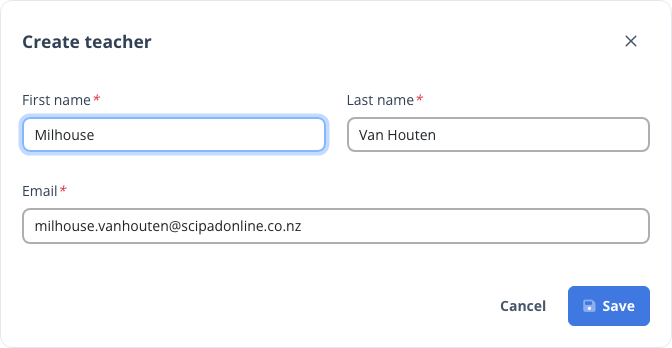
- A school admin can add teachers by going to the Teachers tab and clicking on the button Invite Teacher. Add their first and last name and email – double check the email and be careful not to add a space before or after. Once you click save the teacher will be sent a welcome email with their password and instructions on how to get underway.
- Alternatively, you can send an email to [email protected] with a list of your staff in the format: first name, last name, and email address. The support team will then proceed to add them.

You will then be prompted to add the following details. The added teacher will receive a welcome email explaining how to get underway with their students.
Removing Teachers
If a teacher has left your school, you can now remove them yourself from the Teachers tab - any classes they still run are handed to another teacher at your school as part of the same step. Click here to see how.