Two-factor authentication (2FA) adds a second lock to your account: signing in needs your password and a 6-digit code from an authenticator app on your phone. Even if someone learns your password, they cannot get in without your phone.
2FA is optional and available on teacher and school administrator accounts. Student accounts do not use it.
What you will need
An authenticator app on your phone - Google Authenticator, Microsoft Authenticator, and Authy all work. They are free and the codes work even without an internet connection.
How to set it up
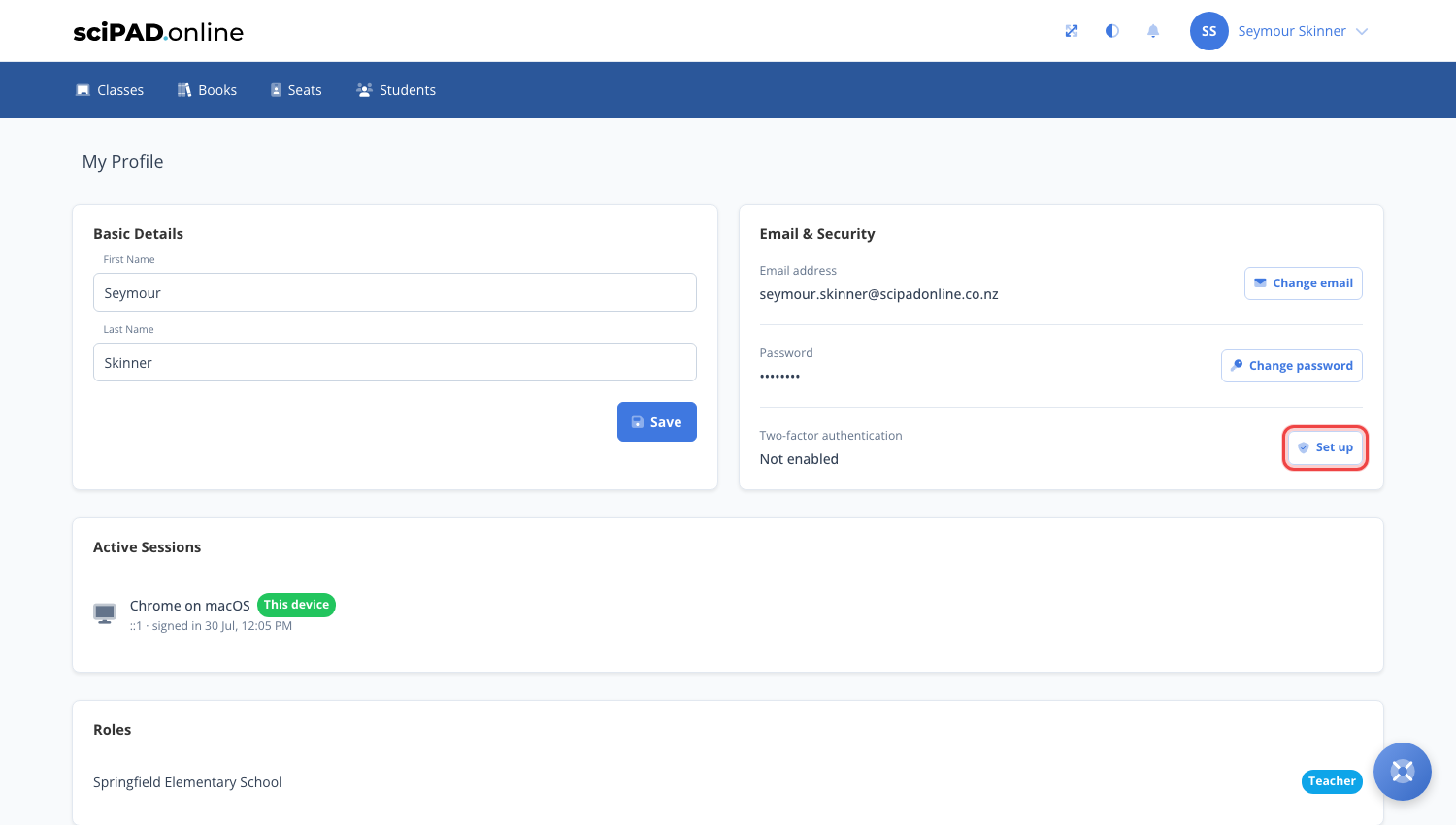
- Click your name in the top right corner and choose My Profile.
- Under Email & Security, find Two-factor authentication and click Set up.
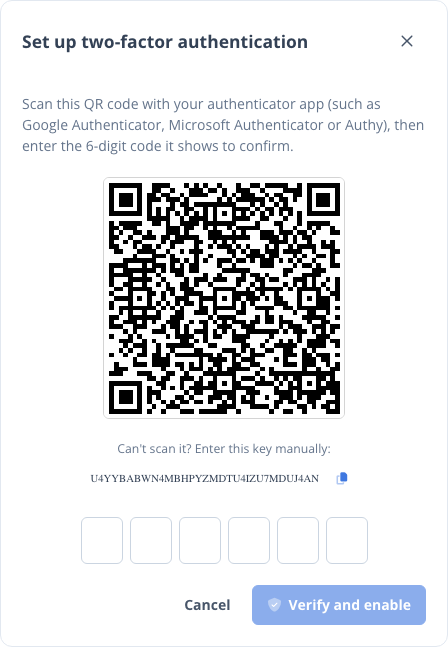
- Open your authenticator app and scan the QR code. If you cannot scan it, enter the key shown below the code instead.
- Your app will start showing a 6-digit code that changes every 30 seconds. Type the current code into the dialog and click Verify and enable.
Save your backup codes
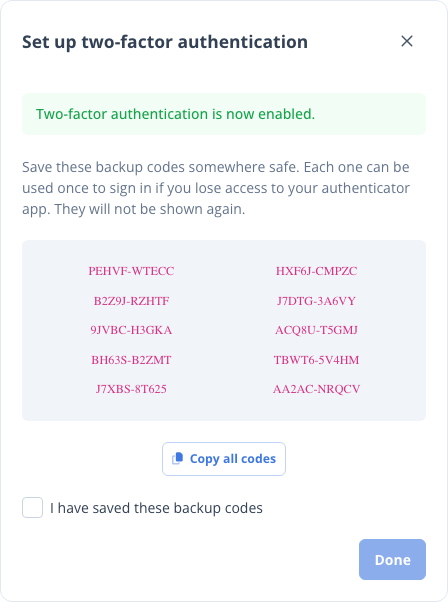
Once 2FA is enabled you are given ten backup codes. This is the only time they are shown, so copy them somewhere safe - a password manager is ideal. Each code can be used once in place of an authenticator code if you ever lose access to your phone.
Signing in with 2FA
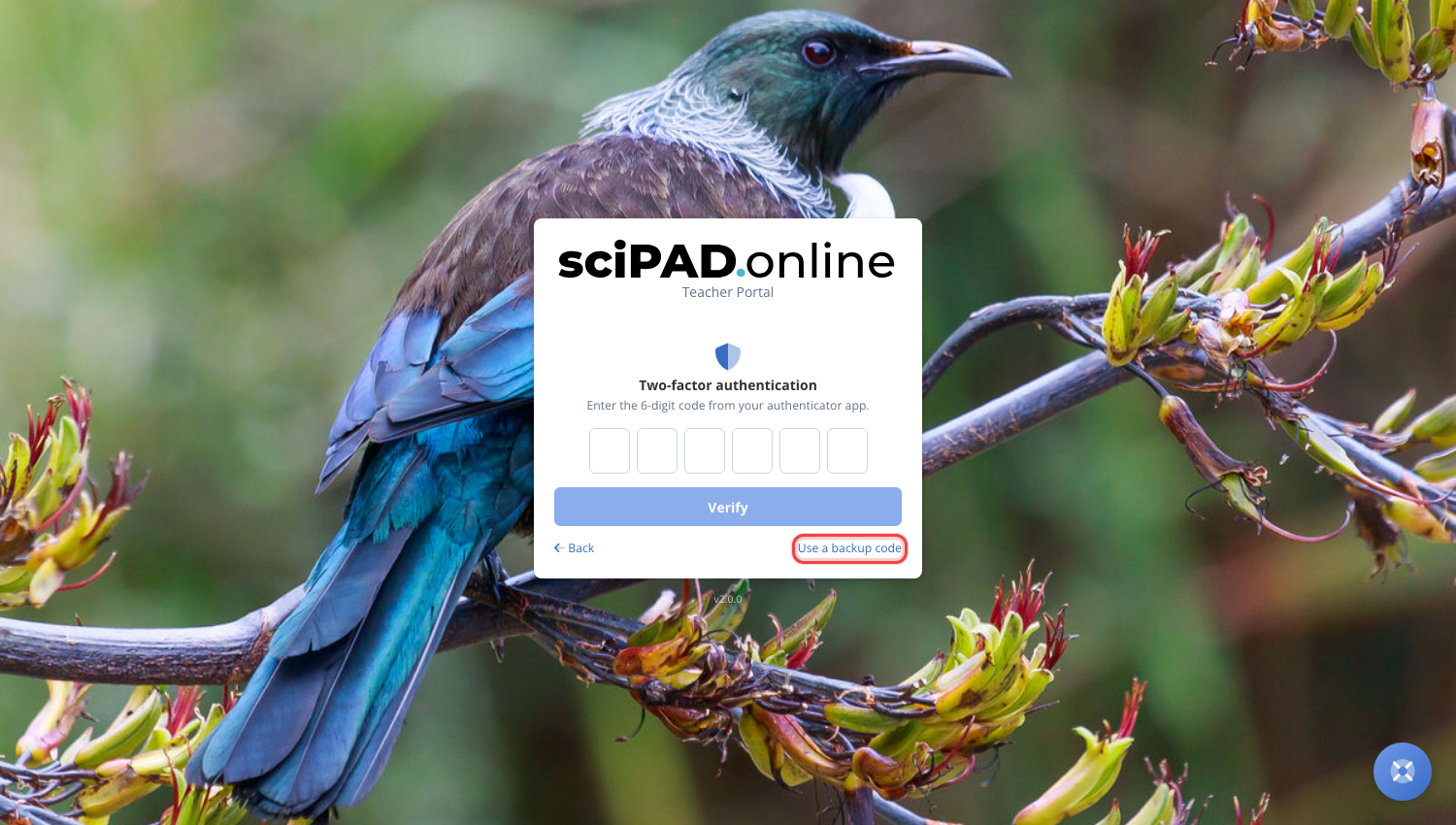
From now on, signing in has one extra step: after entering your password you will be asked for the current 6-digit code from your authenticator app. If your phone is not handy, click Use a backup code and enter one of your saved codes instead - remember each backup code only works once.
Turning 2FA off
You can turn 2FA off from the same place in My Profile - click Turn off and enter a current authenticator code (or a backup code) to confirm. You can set it up again at any time; a fresh QR code and fresh backup codes are generated each time.
Lost your phone and your backup codes?
If you cannot produce a code at all, email support and the team will verify who you are and remove the 2FA from your account so you can sign in with your password and set it up again.