When a lesson's submissions start rolling in, you can step through your class's work one student at a time - no need to go back to the completion table between students. This is the quickest way to review and give feedback across a whole class.
Start marking a lesson
- Open your class and choose the topic.
- Click the Topic Completion button on the far right of the topic you want to mark.
- Click Start marking above the table.
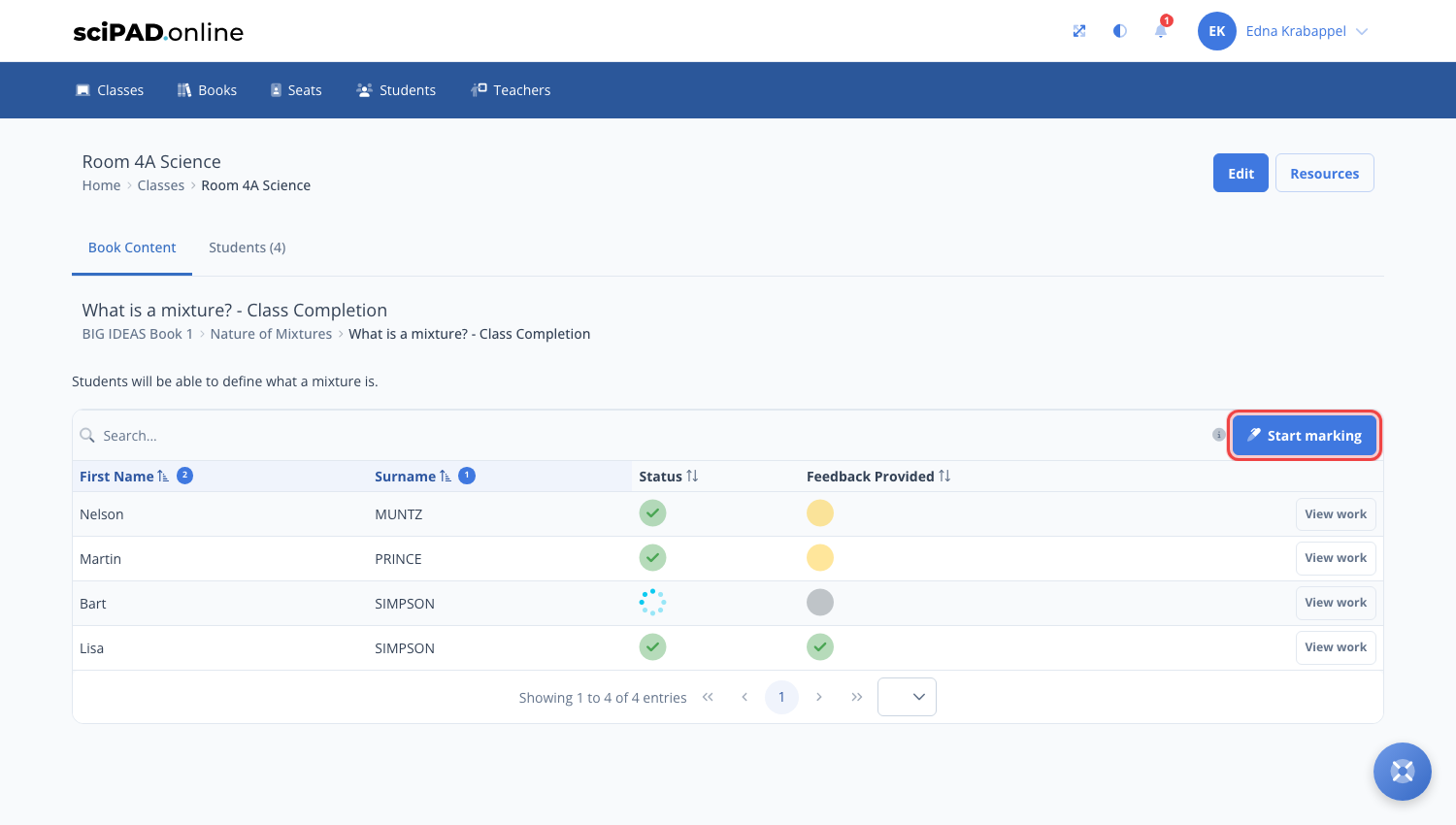
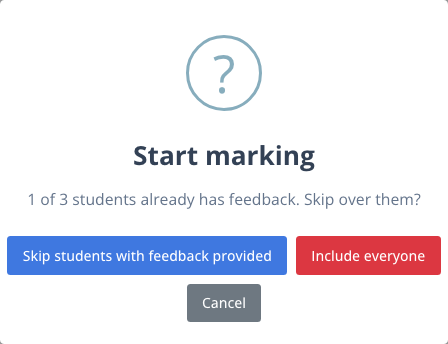
The flow starts with students who have submitted the lesson. If some of them already have feedback, you will be asked whether to skip over them:
- Skip students with feedback provided - visit only the students still waiting on feedback.
- Include everyone - step through every student who has submitted, marked or not.
If nobody has submitted the lesson yet, you can choose to go through the whole class anyway.
Moving between students
The first student's work opens just as if you had clicked their status icon on the completion table. Scroll to the Marking card at the bottom of the page and you will find the navigation controls:
- Previous student and Next student move through the class in the same order as the completion table (by surname). The buttons grey out when you reach either end, so you always know when you are done.
- The counter between the buttons (for example, Student 2 of 4) shows where you are in the class.
- Only submitted work is ticked by default, so you only visit students with work ready to mark. Untick it to include everyone.
- Skip students with feedback provided hides students you have already marked. Tick it mid-flow at any time - it applies from your next click.
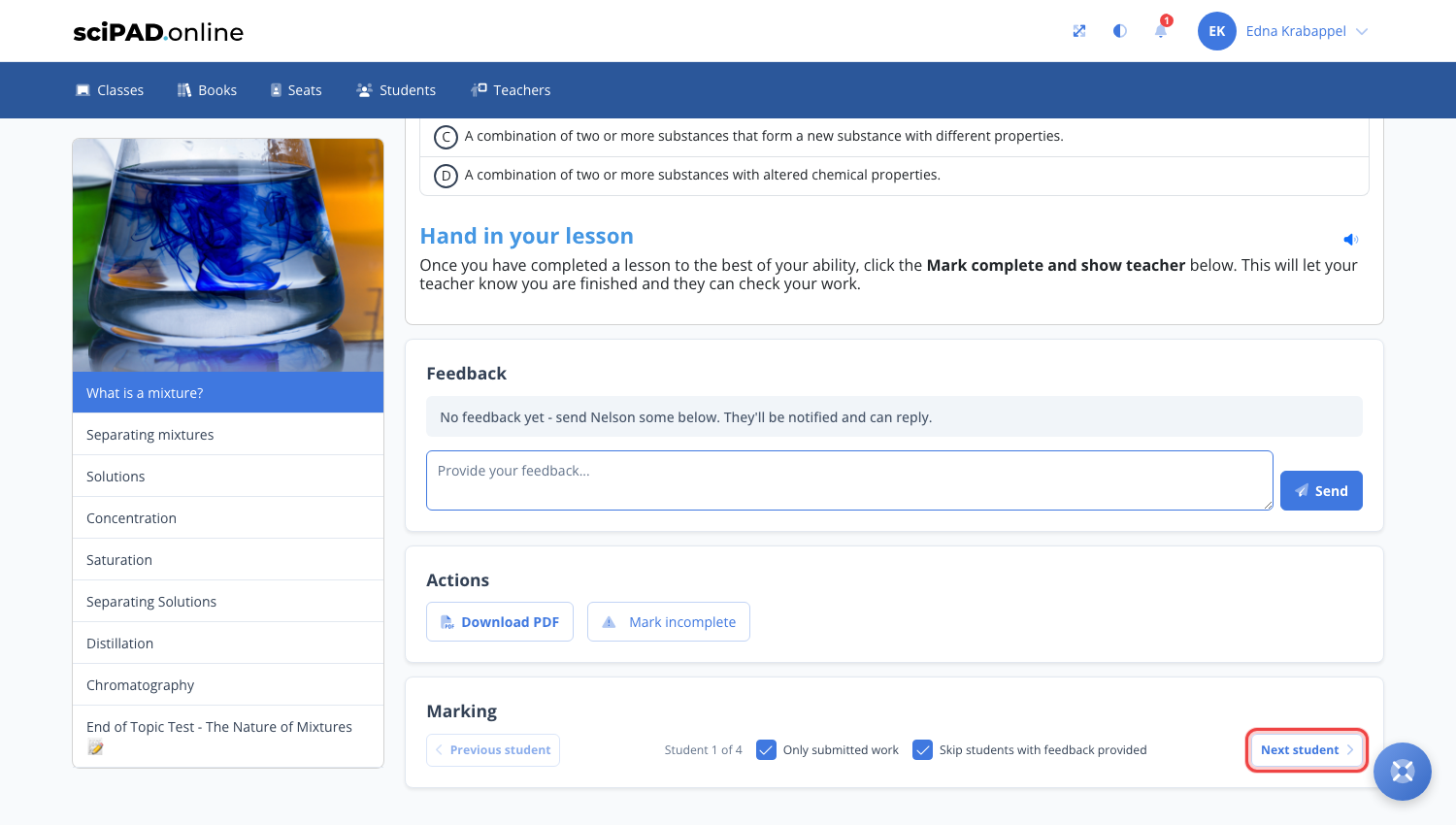
Your choices stay put as you move from student to student, and you can change them whenever you like. Moving between students never changes anyone's work or status - you are just viewing.
To leave feedback while you are there, use the Feedback panel beneath the student's work - see Viewing student work and feedback. Once you send feedback, that student counts as marked, so Next student with the skip option on will pass over them.