Sometimes a lesson isn't for the whole class - extension work for your top students, or catch-up work for a few who need it. You can unlock any lesson for just the students you choose, while the rest of the class simply sees it as locked.
How to unlock a lesson for selected students
- Navigate to your class page and open the topic containing the lesson.
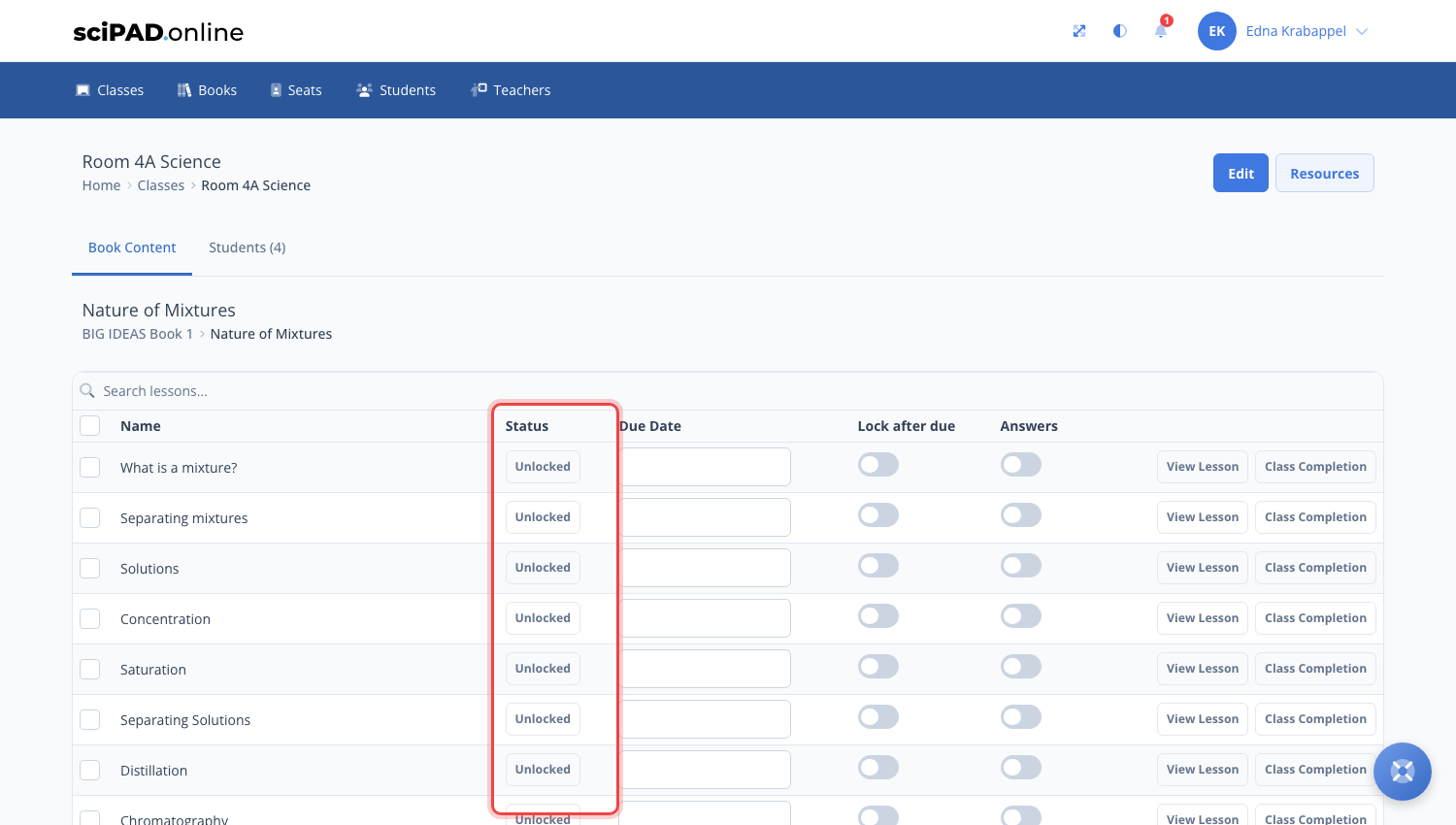
- In the lesson's row, click the Status button - it reads Locked, Unlocked, or Unlocked for 2 of 4 if a selection is already in place.
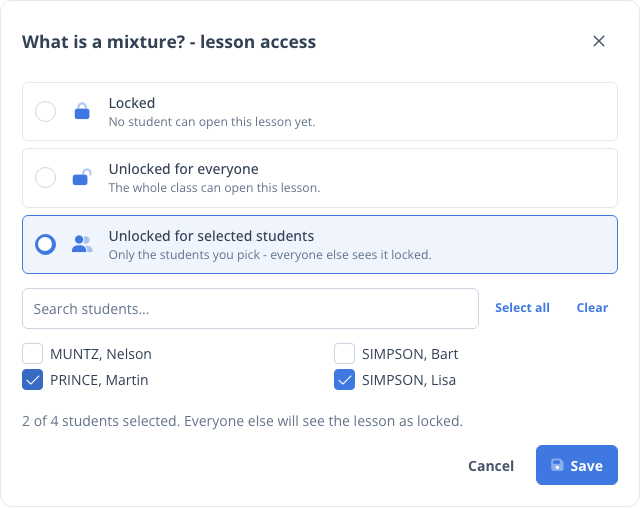
- Choose Unlocked for selected students.
- Tick the students who should have the lesson. You can search the list by name, or use Select all and Clear to start over.
- Click Save.
The lesson is now open for the students you picked, and the Status button shows how many, for example Unlocked for 2 of 4. Everyone else sees the lesson with a padlock, exactly as a locked lesson normally appears - so there's nothing confusing or hidden for the rest of the class.
To open the lesson up to the whole class later, click the Status button again and choose Unlocked for everyone.
Save your selection as a group
The first time you save a custom selection, you'll be asked if you would like to keep it as a group. If you'll be assigning work to these same students across multiple lessons - an extension group is a good example - saving the group makes it a single click next time.

- Give the group a name, for example Extension, and click Save.
- The next time you open the picker for any lesson in this class, your group appears at the top as a one-click pick.
- If you apply a group and then adjust the ticks, saving will offer to update the group to match, save it as a new group, or leave the group as it was.
Groups belong to the class, so every teacher of the class can use them. You can delete a group at any time with the small x beside its name - lessons already unlocked for those students are not affected.
Unlock several lessons at once
To give a student group a whole run of lessons in one go:
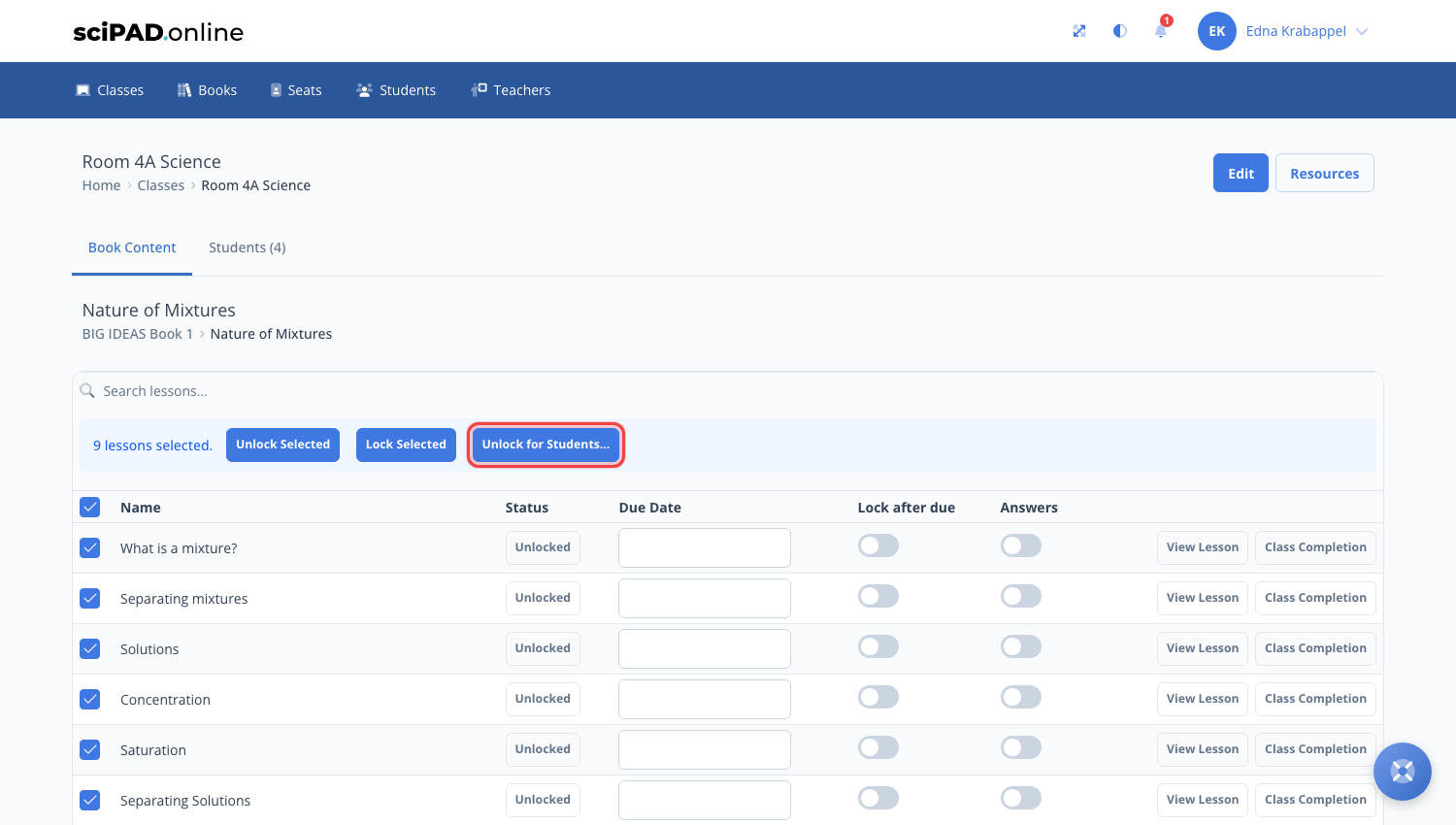
- In the topic's lesson list, tick the checkbox beside each lesson (or the one beside Name to select them all).
- Click Unlock for Students... at the top of the list.
- Pick the students (or a saved group) once and click Save - every selected lesson is unlocked for them together.
New students who join the class later won't see lessons that are limited to selected students until you add them to the selection - so nothing is accidentally assigned.
For unlocking lessons for the whole class, due dates and answers, see enabling topics and lessons.